 November 20, 2025
 11 min read
Is your most valuable data trapped inside static PDF files? For many professionals, manually copying information from reports, invoices, or bank statements into spreadsheets is a slow, frustrating task that often leads to costly errors.
Thankfully, the days of tedious data entry are over. Modern tools to convert PDF to Excel online now use intelligent AI technology to extract tables from PDF documents with incredible accuracy. These powerful converters can transform a locked document into a perfectly formatted PDF to spreadsheet in seconds.
This guide will show you exactly how to unlock your data and master the best conversion tools available in 2026.
1. The Problem with “Trapped” Data in PDFs
PDFs are excellent for sharing documents because they keep formatting consistent. However, this strength becomes a weakness when you need to analyze the data within them. Information in a PDF is essentially “trapped,” making it difficult to edit or repurpose for financial analysis.
Manually retyping data is not only a waste of time but also a major source of human error. Whether you are handling financial reports or research data, using an AI-powered PDF to Excel converter is the only way to stay productive in a data-driven world.
2. Understanding AI & OCR Technology for Conversion
To convert PDF to Excel online accurately, technology must do more than just “copy and paste.”
-
OCR (Optical Character Recognition): This is the engine that scans the document and identifies characters, making even scanned images machine-readable.
-
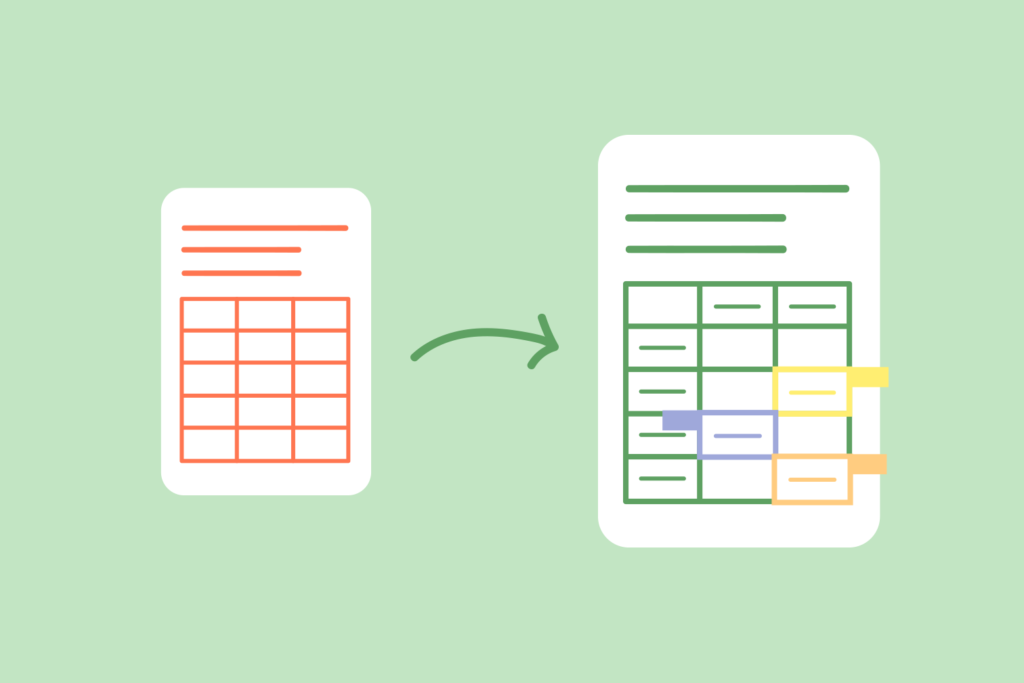
AI (Artificial Intelligence): AI interprets the structure. It recognizes where a table starts, identifies rows and columns, and ensures that merged cells don’t break during the transition from PDF to spreadsheet.
Native vs. Scanned PDFs
A “Native PDF” is created digitally (e.g., from Word), while a “Scanned PDF” is essentially a photo of a document. A high-quality online converter must handle both, using advanced OCR to turn image-based pixels into editable Excel cells.
3. Why You Should Automate Your PDF to Spreadsheet Workflow
Why invest time in finding the best tool to convert PDF to Excel online? The benefits are clear:
-
Drastic Time Savings: Turn hours of manual typing into seconds of automated extraction.
-
Zero Human Error: AI doesn’t get tired. It ensures that every decimal point and line item is captured with 99.9% precision.
-
Data Analysis: Once you extract tables from PDF into Excel, the data becomes dynamic. You can sort, filter, and run complex formulas instantly.
4. How to Convert PDF to Excel Online (5 Simple Steps)
Follow this simple process to get perfect results every time:
-
Choose a Reliable Tool: Select a secure platform like pdftoexcelconverter.ai that prioritizes data privacy.
-
Upload Your File: Use the drag-and-drop interface to upload your native or scanned PDF.
-
Configure AI Settings: If your document is a messy scan, ensure the OCR feature is activated for maximum accuracy.
-
Preview the Data: Review the extracted table structure before downloading to ensure all columns match the original.
-
Download as .XLSX: Export your perfectly formatted PDF to spreadsheet and start your analysis.
5. The Best PDF to Excel Online Converters of 2026
In 2026, the market is divided into three main categories of tools:
-
Best for Overall Accuracy: Tools that use deep learning to handle complex, multi-page tables.
-
Best for Security: Platforms offering end-to-end encryption and automatic file deletion (ideal for sensitive financial docs).
-
Best for Bulk Processing: For enterprises needing to convert hundreds of invoices simultaneously.
6. Pro-Tips for Flawless Data Extraction
To ensure your PDF to spreadsheet conversion is flawless, keep these tips in mind:
-
Resolution Matters: For scanned documents, use a high-resolution file (300 DPI or higher) to help the OCR engine read small fonts.
-
Handle Complex Tables: If you have merged cells or intricate borders, look for a converter that allows you to manually define table boundaries during the preview stage.
-
Data Cleaning: After you convert PDF to Excel online, use Excel’s “Trim” function to remove any accidental white spaces captured during OCR.
7. Troubleshooting Common Problems
-
Scrambled Text: This usually happens with low-quality scans. Try a tool with “Advanced OCR” settings.
-
Incorrect Numbers: If an “O” is misread as a “0”, use the “Find and Replace” feature in Excel to fix inconsistencies across the sheet.
-
Conversion Fails: Large files might exceed free limits. Consider a professional subscription for high-volume tasks.
Conclusion: Lead with Data Automation
The future of data management is automated. By choosing to convert PDF to Excel online with AI, you are not just moving data—you are gaining hours of your life back.
Don’t let your data stay locked in a static prison. Use pdftoexcelconverter.ai today to experience the fastest, most accurate way to extract tables from PDF and master your workflow.