 December 17, 2025
 11 min read
Introduction: The End of Manual Data Entry
We have all been there before. You have a stack of paper receipts on your desk. Or maybe you have a folder full of scanned invoices.
You need those numbers in a spreadsheet immediately. Typing them by hand is a terrible task. It takes hours of your time.
It is also very boring work. Worse, it leads to mistakes. A single wrong digit can ruin your entire financial report.
There must be a better way to handle this. The solution is a technology called OCR. This stands for Optical Character Recognition.
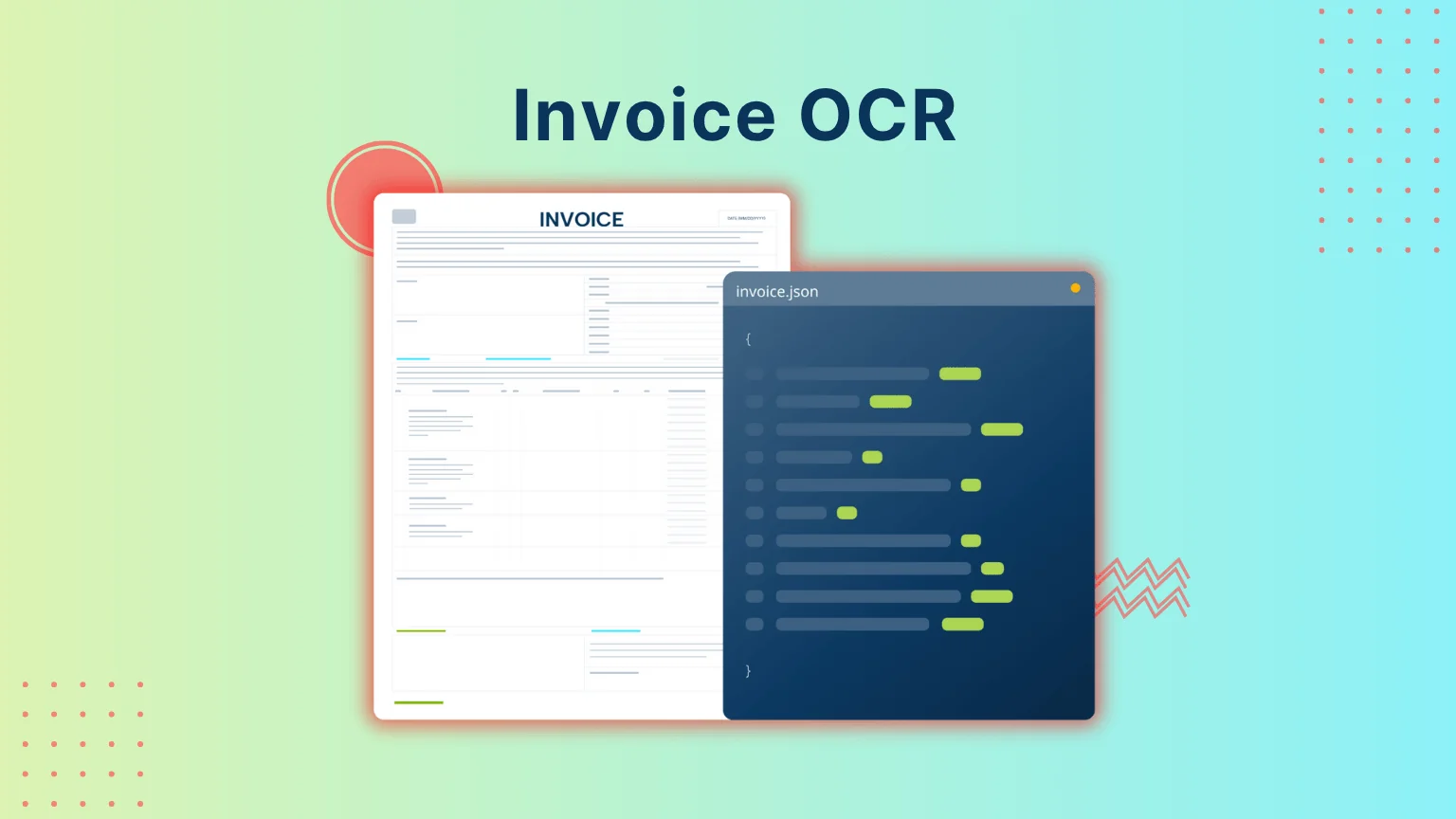
This technology acts as a bridge. It connects your static images like JPG or PNG files to digital tools. It turns pictures into editable Excel cells.
You do not need to type ever again. You just need the best OCR to excel software. These tools do the heavy lifting for you.
In this article, we will look at the top options. We will review the top 5 tools available today. We will judge them on accuracy, speed, and security.
This guide helps you find the best OCR to excel solution. Say goodbye to manual data entry. Welcome to the future of automation.
Evaluation Criteria: How We Ranked the Software
Before jumping into the list, it is important to understand what makes a converter ‘the best’. Not all software is created equal.
Some tools are built for speed. Others are built for precision. We need to define our standards first.
We looked at top OCR converters in the market. We tested them against strict criteria. The first factor is accuracy.
This is the most critical part of any tool. The software must read the numbers correctly. It must also understand the layout of the page.
Good software keeps rows and columns aligned. This is called table recognition. If the columns shift, the Excel file is useless.
The second factor is security and privacy. This is crucial for business data. You need to know where your file goes.
Cloud processing is fast but can be risky. Offline processing is safer for sensitive info. We considered both types in our OCR software comparison.
The third factor is batch processing capabilities. You rarely have just one page to scan. You usually have dozens of files.
The best OCR to excel tools can convert many images at once. This saves you from clicking “upload” fifty times. Now, let us look at the winners.
1. Microsoft Excel (Mobile & Desktop) – The Best Native Solution
For most users, the best tool is the one they already have installed. Microsoft Excel is not just a spreadsheet tool. It is also a scanner.
It has a powerful built-in feature. This feature is called “Data from Picture”. It is available on both desktop and mobile apps.
Key Feature: ‘Data from Picture’
This feature uses Artificial Intelligence. It lives inside your Office 365 subscription. You do not need extra plugins.
On the mobile app, you use your camera. You take a photo of a physical document. The app analyzes the image instantly.
It identifies the rows and columns. It converts the image data into a digital table. You can review it on your phone screen.
On the desktop version, it works similarly. You upload an image file from your computer. Excel processes it right there in the sheet.
It is one of the accurate OCR tools for simple tasks. It integrates perfectly with your workflow. You are already in Excel, so it is seamless.
Pros & Cons
There are many good things about this tool. The biggest pro is the cost. It is free if you have Microsoft Office.
It is also very secure. Microsoft has high standards for data privacy. You can edit the data immediately after scanning.
However, there are some downsides. It struggles with very complex tables. If the paper is wrinkled, it might fail.
It is not great for huge batches of files. It is best for one page at a time. It is the best OCR to excel method for quick, daily tasks.
2. ABBYY FineReader PDF – The Best for Professional Accuracy
When native tools fail on complex documents, professional OCR software is required. Sometimes free tools are not enough.
You might have a blurry scan. Or you might have a document with mixed languages. This is where ABBYY FineReader shines.
It is known as one of the top OCR converters in the world. It is built for heavy-duty work. Businesses rely on it for critical data.
Key Feature: Advanced OCR Engine
ABBYY uses a proprietary AI engine. It is incredibly smart and powerful. It recognizes text that other tools miss.
It handles special characters perfectly. It supports over 190 different languages. This is vital for international business.
It excels at table extraction. It preserves the exact structure of the original document. Your Excel file looks exactly like the PDF.
It also allows for manual verification. You can teach the software to read specific fonts. This makes it the best OCR to excel software for professionals.
Pros & Cons
The accuracy is the main pro here. It is unmatched in the industry. The batch processing is also excellent.
You can set it to convert a whole folder. It runs in the background while you work. It saves massive amounts of time.
The main con is the price. It is expensive software. It is an investment for a business.
It can also be complex to learn. There are many buttons and settings. But for results, it is one of the most accurate OCR tools available.
3. Adobe Acrobat Pro – The Industry Standard
A familiar name that offers robust conversion features beyond just PDF reading. Everyone knows Adobe Acrobat.
It is the standard for viewing PDF files. But the Pro version is a powerful creator too. It has strong OCR capabilities built-in.
It is designed to manage documents. Converting to Excel is a key part of that. It is a reliable tool for office workers.
Key Feature: Image-to-PDF-to-Excel Workflow
Adobe uses a specific workflow. First, it converts your image into a PDF. Then, it uses OCR to make that PDF readable.
Finally, you export that PDF to Excel. This multi-step process ensures stability. It locks the formatting in place.
It is very good at keeping layouts. Headers and footers stay where they belong. The data transfer is usually very clean.
It integrates deep with other tools. You can save files directly to the cloud. It works well with Microsoft Word and Excel.
Pros & Cons
The reliability is a huge plus. You know what to get with Adobe. It is a trusted brand for a reason.
The formatting retention is excellent. It is one of the top OCR converters for preserving style. It creates professional-looking spreadsheets.
However, it requires a subscription. You must pay for Creative Cloud. This can be a monthly cost burden.
It is also a large program. It takes up space on your computer. It might be too much for simple needs.
But for consistent quality, it is a contender for the best OCR to excel utility.
4. Google Workspace (Drive & Sheets) – The Best Free Cloud Option
For users needing a completely free, zero-install solution. You might not have a budget. Or you might be on a public computer.
Google offers a hidden gem. It is part of Google Drive. Many people do not know it exists.
It uses Google’s massive AI power. It is cloud-based and accessible anywhere. It is a great OCR software comparison point against paid tools.
Key Feature: Google Docs OCR
The feature is hidden in Google Drive. You upload a JPG or PDF file. Then you right-click on it.
Select “Open with Google Docs”. This triggers the conversion. Google strips the image and finds the text.
It places the image at the top. Below it, you get the editable text. If there is a table, it tries to recreate it.
You can then copy that table to Sheets. It acts as a free gateway. It is one of the most accessible accurate OCR tools.
Pros & Cons
The biggest pro is that it is free. You just need a Google account. It works on any browser.
It is also very fast. Google’s servers are powerful. You do not need to install anything.
The cons are about formatting. It often loses the layout. You might get a list of text instead of a table.
You will need to do manual cleanup. You have to copy the data to Excel yourself. It is not a direct best OCR to excel button.
But for a free tool, it is impressive. It is great for students or simple tasks.
5. Smallpdf / iLovePDF – The Best for Quick Web Conversions
For one-off tasks where installing software isn’t an option. Sometimes you just need one file done. You do not want to buy software.
There are many websites for this. Smallpdf and iLovePDF are the most famous. They are simple online tools.
They focus on ease of use. They are designed for non-technical people. They are very popular top OCR converters.
Key Feature: Drag-and-Drop Simplicity
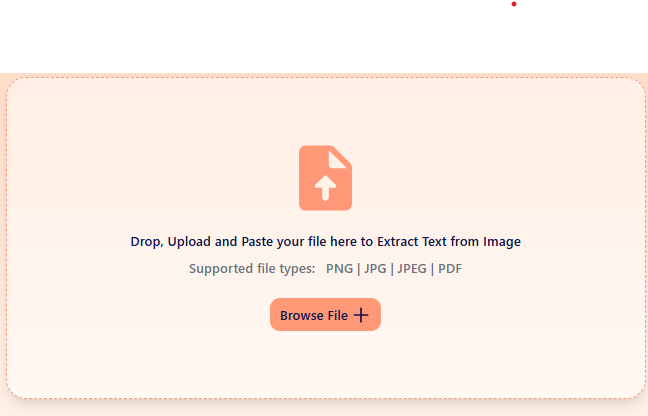
The interface is the best feature. You open the website. You drag your file onto the screen.
The website does the rest. It uploads, converts, and downloads. The whole process takes seconds.
You do not need an account for basic use. It converts images straight to Excel. It uses cloud servers to process the data.
It is the most user-friendly experience. It is great for emergencies. It gets the job done quickly.
Pros & Cons
Speed is the main advantage. It is instant gratification. It works on phones and tablets too.
The results are generally good. For simple tables, it works well. It is a solid best OCR to excel option for speed.
The downsides are privacy and limits. You are uploading data to a third-party. You should not upload sensitive bank statements.
Also, the free version has limits. You can only do a few files a day. For bulk work, you need to pay.
Comparison Table: Which Tool is Right for You?
We have looked at five different tools. It can be hard to remember all the details. Let us summarize them for you.
A good OCR software comparison helps you decide. Look at your needs and your budget. Here is a quick breakdown.
Microsoft Excel is best for casual users. It is free with Office. The accuracy is Good.
ABBYY FineReader is best for business pros. It has a high price. The accuracy is Excellent.
Adobe Acrobat is best for office workflows. It requires a subscription. The accuracy is Very Good.
Google Workspace is best for free needs. It costs nothing. The accuracy is Fair.
Smallpdf is best for quick tasks. It is free (limited). The accuracy is Good.
Choosing the best OCR to excel tool depends on volume. If you scan all day, buy ABBYY. If you scan once a month, use Smallpdf.
Consider the complexity of your documents. Simple tables work on anything. Complex forms need accurate OCR tools.
Tips for Better Conversion Results (Optimizing Input)
Even the best OCR to excel software can fail. This happens if the input image is bad. Garbage in means garbage out.
You can improve your results easily. You just need to take better pictures. Here are some tips to help you.
Lighting and Contrast
Lighting is the most important factor. You need bright, even light. Shadows are the enemy of OCR.
A shadow looks like a dark blob to the computer. It hides the text underneath. Use a desk lamp or natural window light.
Contrast is also vital. The text should be dark. The paper should be light.
If the scan is grey, the software struggles. Binarization helps here. This means converting the image to pure black and white.
Most top OCR converters have this setting. It sharpens the edges of the letters. It makes the best OCR to excel process smoother.
Resolution (DPI)
Resolution is measured in DPI. This stands for Dots Per Inch. Higher numbers mean more detail.
For standard documents, 300 DPI is the sweet spot. It is clear enough to read. But the file size is not too big.
If the DPI is too low, the text looks blocky. The software will confuse an ‘8’ for a ‘B’. This causes errors in your Excel sheet.
If you are using a phone, get close. Fill the frame with the document. Do not take a picture from far away.
Good input makes for accurate OCR tools. Take a moment to set up the shot. It saves you time fixing typos later.
Conclusion
Manual data entry should be a thing of the past. You have powerful tools at your fingertips. You can save hours of boring work.
For daily, casual use, Microsoft Excel is king. It is likely already on your computer. It is the best OCR to excel tool for quick jobs.
For heavy business use, choose ABBYY FineReader. It handles volume and complexity. It justifies its price with accuracy.
Cloud tools like Google and Smallpdf offer freedom. They are great for quick fixes. But be careful with private data.
Remember to optimize your images. Good lighting makes a huge difference. High resolution ensures accuracy.
Do not let paper slow you down. Use these top OCR converters to speed up. Your productivity will skyrocket.
Test the “Data from Picture” feature on your phone right now to see the magic in action. You will be amazed at how easy it is.
Why pdftoexcelconverter is The Right Solution For You?
You have seen the options. But sometimes, you need more than just a tool. You need a complete solution.
When comparing pdftoexcelconverter vs others, the difference is clear. [Brand name] is built for modern challenges. We combine the best features of all these tools.
We offer the accuracy of professional software. Our AI engine is trained on complex documents. We handle messy tables better than free converters.
We also prioritize your security. Your data is safe with us. We understand the needs of enterprise clients.
pdftoexcelconverter is the best OCR to excel partner for your growth. We handle high volumes effortlessly. We automate the boring work for you.
You get the speed of cloud tools with the power of desktop software. We are among the most accurate OCR tools available.
Stop struggling with formatting errors. Stop worrying about privacy risks. Choose a solution that adapts to you.
Try pdftoexcelconverter today. Experience the future of data extraction.