 November 13, 2025
 11 min read
Interested in learning how to extract text from images using code? This Python OCR tutorial is your complete roadmap. Optical Character Recognition (OCR) allows you to turn static images—like scanned receipts or invoices—into machine-readable data.
By combining the power of Tesseract OCR with OpenCV for image processing, you can build robust automation tools. Whether you are a beginner or a developer looking to refine your skills, this guide provides a practical, step-by-step approach to mastering OCR in Python.
I. Environment Setup: Installing Tesseract and Libraries
Before writing code, you must build a solid foundation by installing the Tesseract engine and the necessary Python wrappers.
1. Installing Tesseract OCR Engine
Tesseract is an open-source engine developed by Google. You must install it on your OS first:
-
Windows: Download the installer from the Tesseract at UB Mannheim page.
-
macOS: Run brew install tesseract.
-
Linux: Run sudo apt-get install tesseract-ocr.
2. Installing Python Libraries
Activate your virtual environment and install the core packages using pip:
pip install opencv-python pytesseract numpy matplotlib-
OpenCV: For advanced image preprocessing.
-
Pytesseract: The Python wrapper for Tesseract.
II. Image Preprocessing: The Key to OCR Accuracy
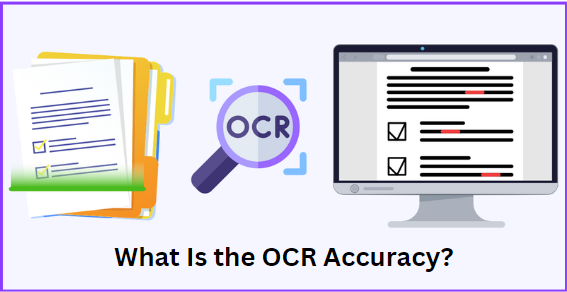
In any Python OCR tutorial, preprocessing is 80% of the work. Tesseract works best on clean, high-contrast images. OpenCV allows us to “clean the window” before the AI looks through it.
1. Grayscale Conversion
Color data often adds noise. Reducing an image to a single intensity channel is the first crucial step.
import cv2
img = cv2.imread('invoice.png')
gray = cv2.cvtColor(img, cv2.COLOR_BGR2GRAY)
2. Binarization (Thresholding)
Converting grayscale into pure black-and-white makes text stand out. Adaptive thresholding is highly effective for varied lighting.
thresh = cv2.adaptiveThreshold(gray, 255, cv2.ADAPTIVE_THRESH_GAUSSIAN_C, cv2.THRESH_BINARY, 11, 2)III. Basic Text Extraction with Pytesseract
With a clean image, you can now perform the actual extraction. The image_to_string function is the core of this Pytesseract tutorial.
import pytesseract

# Perform image to text extraction
text = pytesseract.image_to_string(thresh)
print("Extracted Text:", text)
Note: Ensure your image is in RGB format if you are passing a color image, as OpenCV uses BGR by default.
IV. Advanced OCR: Bounding Boxes and Confidence Scores
Sometimes raw text isn’t enough. You may need to know the location of each word and how confident the engine is. For this, we use image_to_data.
from pytesseract import Output

# Get detailed data as a dictionary
data = pytesseract.image_to_data(thresh, output_type=Output.DICT)

# Draw a box around high-confidence words
for i in range(len(data['text'])):
    if float(data['conf'][i]) > 60:
        (x, y, w, h) = (data['left'][i], data['top'][i], data['width'][i], data['height'][i])
        img = cv2.rectangle(img, (x, y), (x + w, y + h), (0, 255, 0), 2)

cv2.imshow('Result', img)
cv2.waitKey(0)
V. Troubleshooting and Page Segmentation Modes (PSM)
If your OCR results are poor, you can give Tesseract hints about the layout using Page Segmentation Modes (PSM).
-
Use –psm 6 for a single uniform block of text.
-
Use –psm 11 to find as much text as possible in no particular order.
custom_config = r'--psm 6'
text = pytesseract.image_to_string(thresh, config=custom_config)
Conclusion: Python OCR vs. Professional AI Solutions
You have now built a working OCR pipeline. This Python OCR tutorial gives you the power to digitize forms and automate data entry. However, manual coding requires significant time to handle edge cases like blurry scans or complex tables.
If you need 100% accuracy without the coding headache, consider using an AI-powered tool like pdftoexcelconverter.ai. Our platform uses advanced deep learning to handle the heavy lifting for you, especially for complex PDF to Excel tasks.